Cruce Saunders
  • Player card
  • Workshop
  • List
  • Contact
Cruce Saunders
  • Player card
  • Workshop
  • List
  • Contact

TaskGo!

Feb–May 2026Mac appv1.0 on GitHub

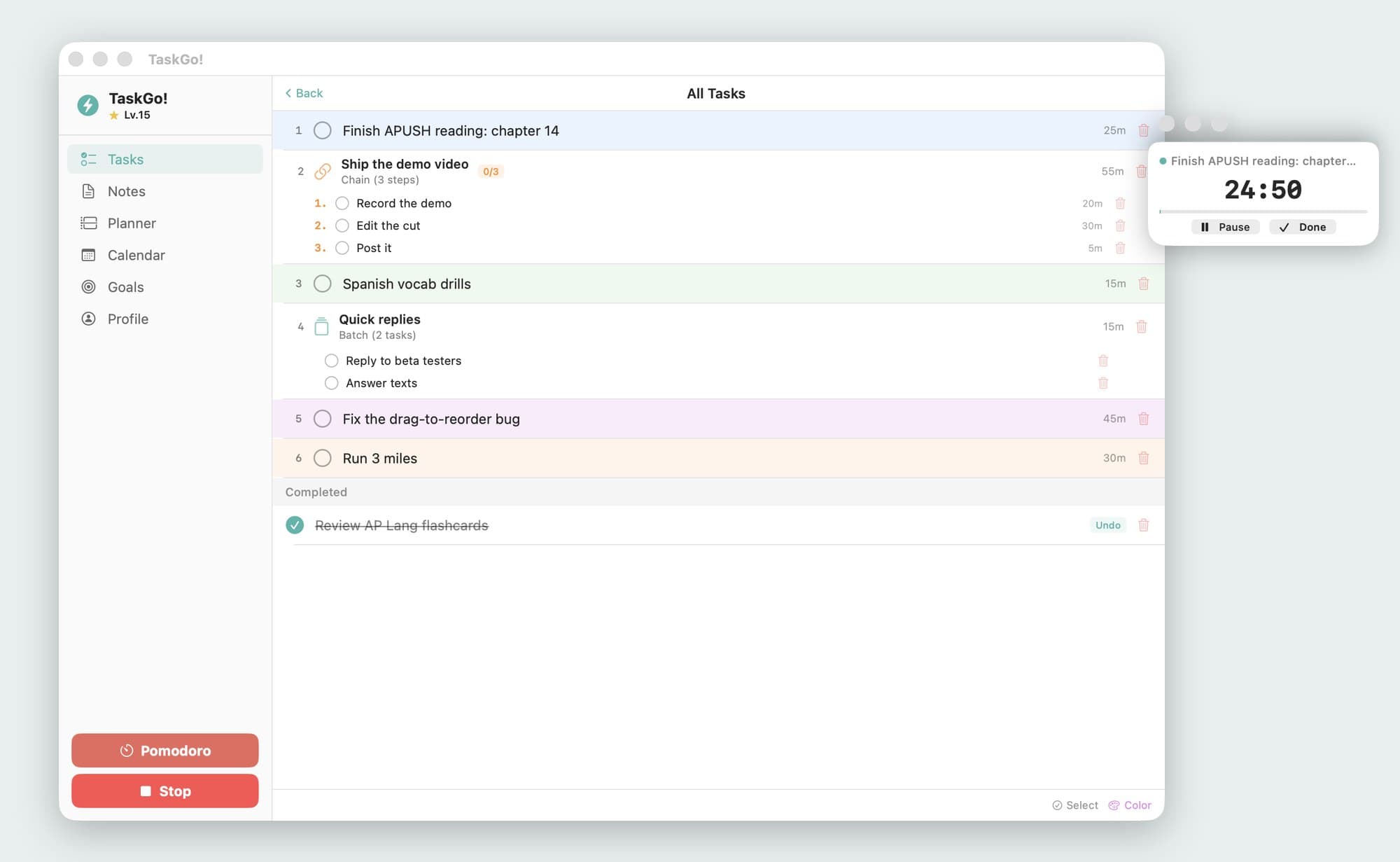
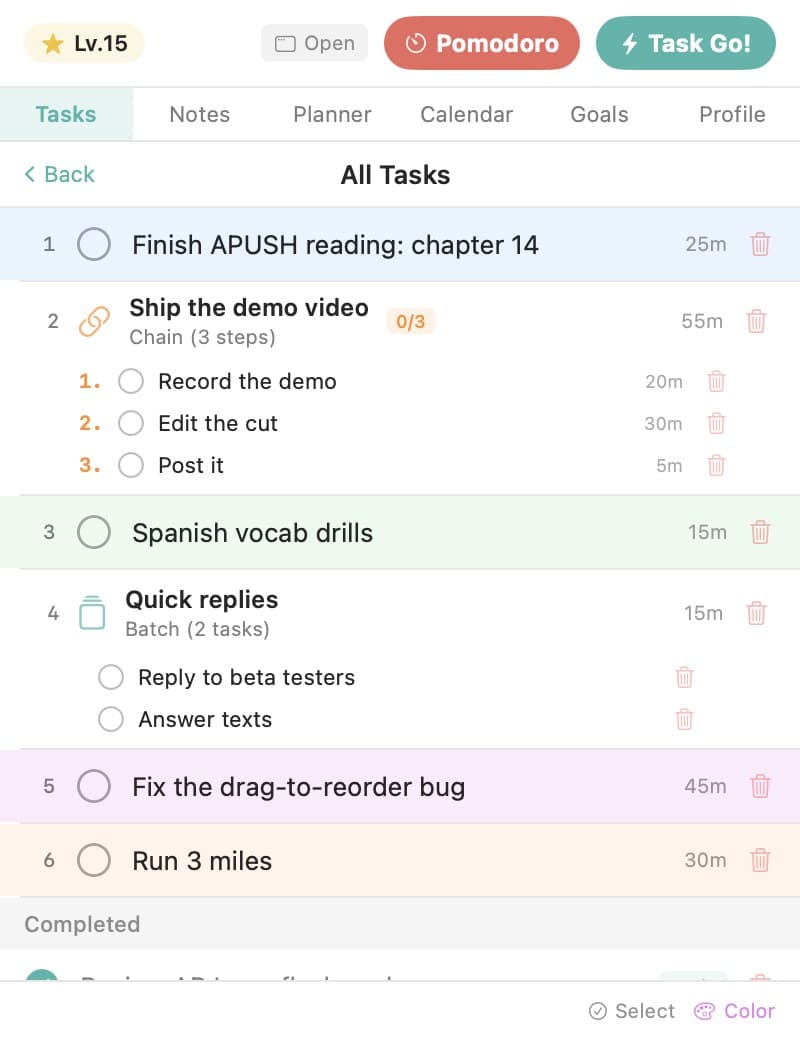
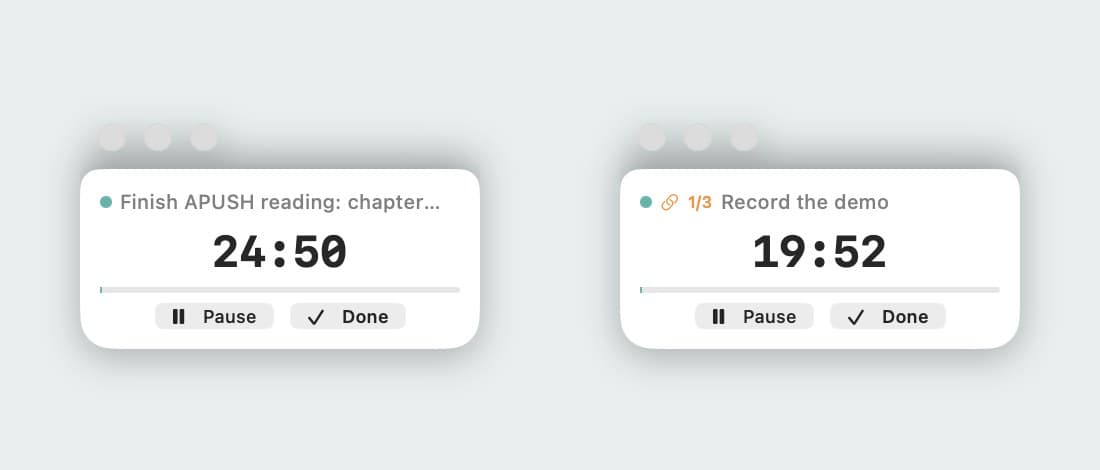
TaskGo!'s window with a prioritized task list, a three-step chain and a batch, next to a floating timer counting down 24:50 on the first task. Sample tasks.
Back to the worldTaskGo!
  • Player card
  • Workshop
  • List
  • Contact
  • Back to the world
  • Player card
  • Workshop
  • List
  • Contact

TaskGo!

TaskGo! is a native Mac app I built to run my day from the menu bar: one task list, a timer that walks me through it, and levels for getting things done.

It times each task and starts the next one when I finish, pays one XP for every minute I spend on a task, turns a weekly plan into calendar blocks, and tracks bigger goals by milestone and time spent.

I used it every day for three months, and an early version's Activity tab became the idea behind Crawft.

commits, February to May 2026
190190
lines of Swift
15.3k15.3k
levels to climb
100100

I built TaskGo to always know what to do next

In early 2026 I was juggling school, Ippo and a pile of side projects, and my to-do lists kept failing the same way: they told me everything I had to do and never what to do right now. So I built TaskGo, a native Mac app in Swift and SwiftUI with a Firebase backend.

Every task goes into one list in priority order, with a time estimate and a color. A chain holds steps that have to happen in order, and a batch bundles quick tasks into one timed block. When I press Task Go!, a small floating timer starts on the top task and counts down, so I always know what I'm doing and how long I have left.
The whole app is one loop

Everything in TaskGo serves a single loop. The list decides the next task, the timer keeps me on it, Done checks it off and pays out XP, and the next task starts by itself, so there's no moment where I stop to decide what's next. The planner feeds the list from my week, and Goals keep the bigger projects in view.

The TaskGo loop

Task listPriority order,estimates, chains andbatchesFloating timerRuns the top task:time left, Pause,DoneI hit DoneXPOne per minute on thetaskTask Go!next task starts onits ownTask listPriority order, estimates, chains andbatchesFloating timerRuns the top task: time left, Pause,DoneI hit DoneXPOne per minute on the taskTask Go!next task starts onits own
DataOutputPerson
  • Task list: Priority order, estimates, chains and batches
  • Floating timer: Runs the top task: time left, Pause, Done
  • I hit Done
  • XP: One per minute on the task
  • Task list to Floating timer: Task Go!
  • Floating timer to I hit Done
  • I hit Done to XP
  • XP to Task list: next task starts on its own

A day in TaskGo

Here is how I used it, from opening the menu bar in the morning to planning the week ahead.

  1. TaskGo!'s menu-bar popover: a level badge, Pomodoro and Task Go! buttons, six tabs and a color-coded task list. Sample tasks.
    1

    Step 1: Open it from the menu bar

    TaskGo lives in the Mac menu bar, so my list opens on top of whatever I'm working in. The popover has the same tabs as the full window: tasks, notes, a planner, my calendar, goals and my profile, with my level and the Task Go! button along the top. Goals holds the longer projects, each with milestones, a target date and a stopwatch that adds up the time I've put in.

  2. Two states of TaskGo!'s floating timer: 24:50 left on a reading task, then 19:52 left on step 1 of 3, Record the demo, after pressing Done.
    2

    Step 2: Done moves me straight on

    While a task runs, the timer shows its name, the time left, Pause and Done. Hitting Done checks it off and starts the next task on its own: here, finishing my reading moved me straight to step one of a three-step chain. On days with two streams of work, I ran parallel lanes, each with its own timer and color.

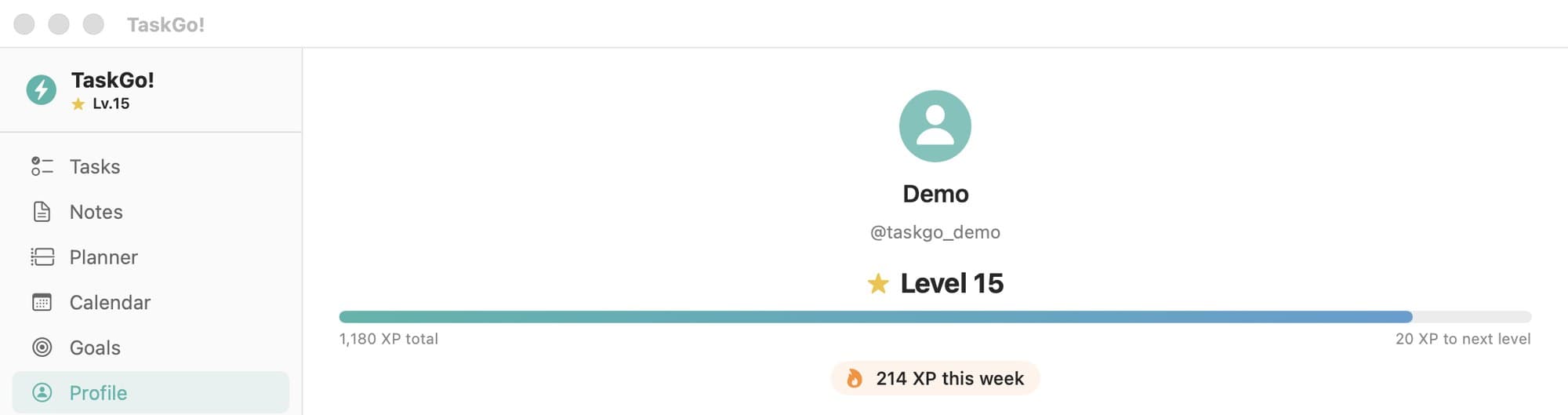
  3. TaskGo!'s profile tab: Level 15, a progress bar at 1,180 XP with 20 XP to the next level, and 214 XP this week. Demo account.
    3

    Step 3: Time on task becomes levels

    Every minute a task's timer runs is worth one XP, paid out when I hit Done. XP climbs through 100 levels on a curve that gets steeper as you go, and a weekly total resets every Monday. Watching the bar fill turned finishing my list into a game I wanted to win.

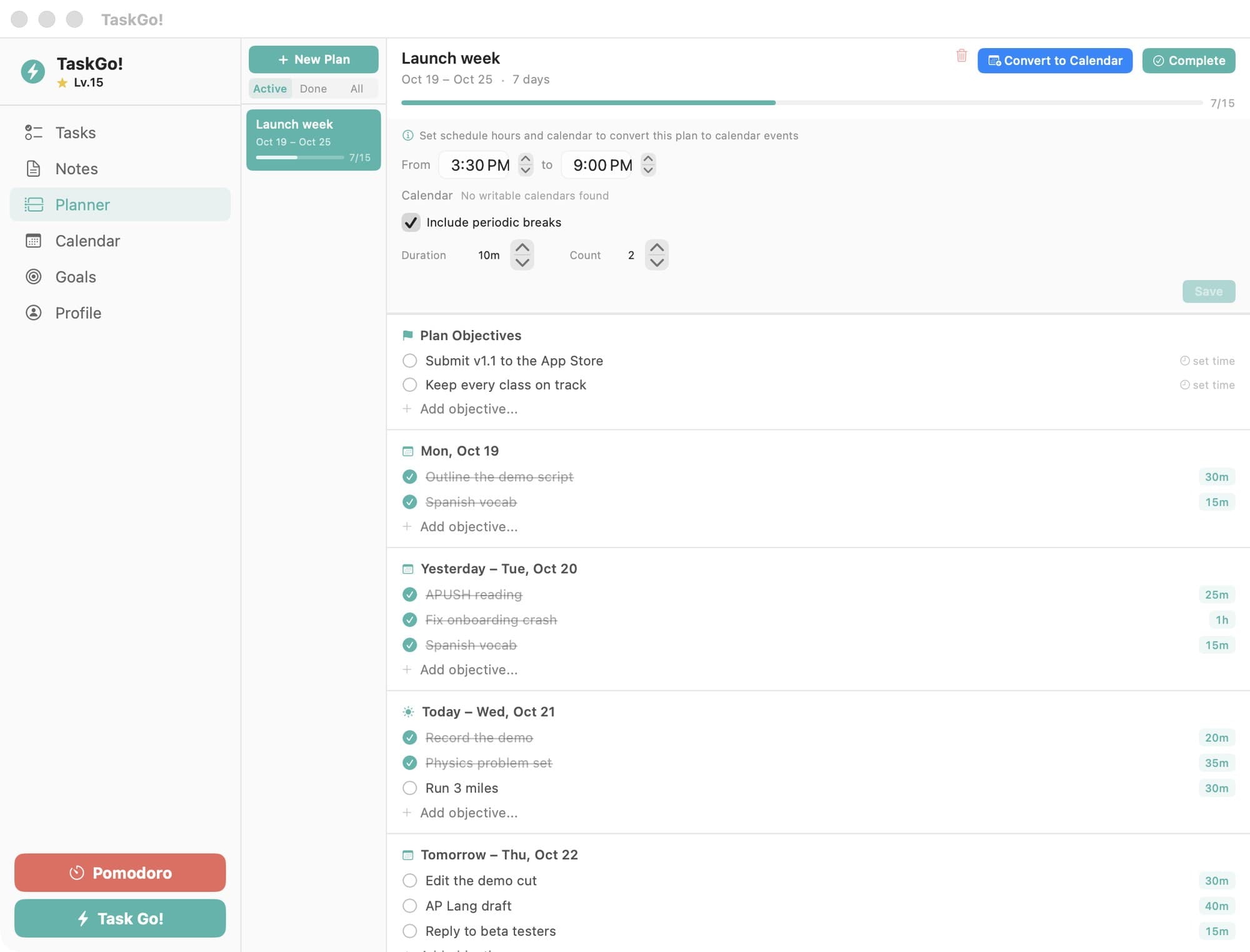
  4. TaskGo!'s Planner: a Launch week plan with a 3:30 to 9:00 PM schedule window, breaks, a Convert to Calendar button and timed objectives for each day. Sample plan.
    4

    Step 4: Plan the week, then block the time

    The Planner holds plans by day, by week or as milestones, each with timed objectives and a schedule window, like 3:30 to 9:00 PM. Convert to Calendar sends the plan's unfinished objectives to an AI scheduler that fits each one into a free slot in that window as a calendar block, with breaks if I want them, around my existing events.

TaskGo!'s menu-bar popover: a level badge, Pomodoro and Task Go! buttons, six tabs and a color-coded task list. Sample tasks.
Two states of TaskGo!'s floating timer: 24:50 left on a reading task, then 19:52 left on step 1 of 3, Record the demo, after pressing Done.
TaskGo!'s profile tab: Level 15, a progress bar at 1,180 XP with 20 XP to the next level, and 214 XP this week. Demo account.
TaskGo!'s Planner: a Launch week plan with a 3:30 to 9:00 PM schedule window, breaks, a Convert to Calendar button and timed objectives for each day. Sample plan.

XP pays for time on task

The first version of XP was strict. The timer sampled my keyboard and mouse while a task ran, and a function on the server paid nothing if I'd been active for less than 60% of the session. Later versions dropped the activity tracking and kept one simple rule: every minute the timer runs earns one XP when I hit Done. A long task is worth more than a quick one, and the estimate never counts, only the time I actually put in.

I also gave TaskGo a REST API with its own keys, covering tasks, notes, plans and reminders, so my AI agents could add work to my list. The app updates itself through Sparkle, the standard updater for Mac apps.

An early Activity tab became Crawft

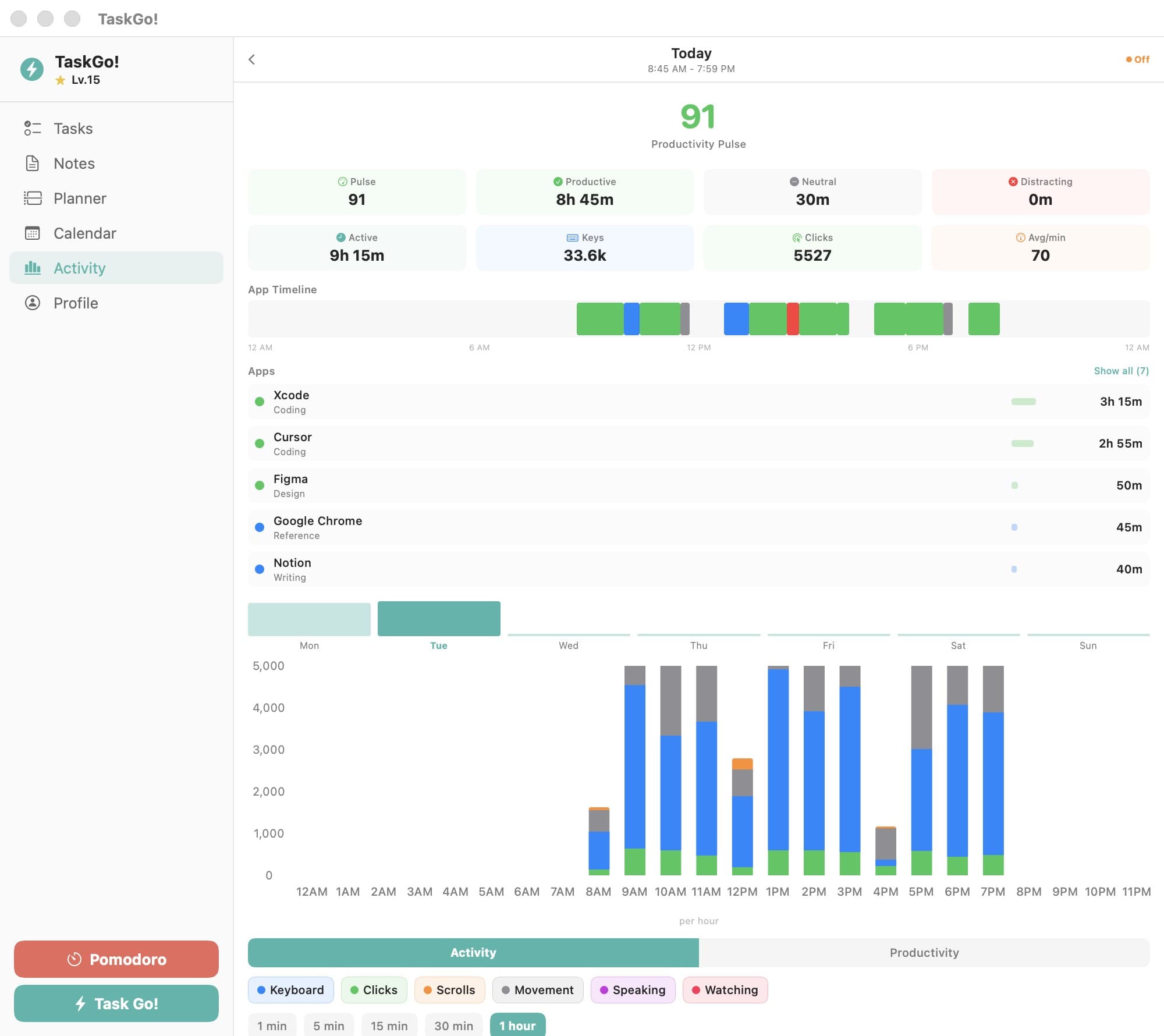
An early version of TaskGo had one more tab, and it turned out to matter most. Activity counted keystrokes, clicks, scrolls and mouse movement minute by minute, never what I typed, and noted which app was in front. It turned a day into a productivity pulse, an app timeline colored by how productive each app is, time per app and an hourly chart.

Looking at my own days that way, I kept thinking teachers would want this view of their students, written up in plain English instead of charts. Two months after I added the tab, that thought became Crawft, the company I run now. Later versions of TaskGo replaced the tab with Goals.

The Activity tab from an early version of TaskGo!, for a sample day: a productivity pulse of 91, active time, keystrokes and clicks, a color-coded app timeline, time per app and an hourly input chart.
An early version, before Goals replaced the Activity tab.
Download TaskGo!Source on GitHub

More builds

  • HardwareDrum CockpitMay 2026
  • GameSchool GameOct 2026

Back to the workshop